The Kith Guide › Getting started
⬇ Install & First Run
Download the Kith Workshop, sign in, link Discord, and get your first tool open.
The Kith Workshop is a free Windows desktop app. It holds the tools that need to read your game files or your screen — the ones a browser cannot do. This page gets you from nothing to a working install.
Downloading
- Go to kith-swg.com/desktop.html.
- Click the download button. It always resolves to the newest installer.
- Run the file when it finishes.
Note: Windows may warn you about an unrecognised app. That is SmartScreen reacting to an installer without an expensive code-signing certificate, not a detection of anything harmful. Choose More info → Run anyway. If you would rather not, the browser tools need no install at all.
Signing in
- Launch the Workshop.
- Sign in with the account you were given.
- If you have not linked Discord yet, you are asked to — do it. Your Discord identity is what connects the app to LFG, the Market and your orders.
Tip: Link Discord even if you only plan to use the offline tools. It costs nothing and it is what lets the app show your characters, your runs and your loot in one place later.
Your first five minutes
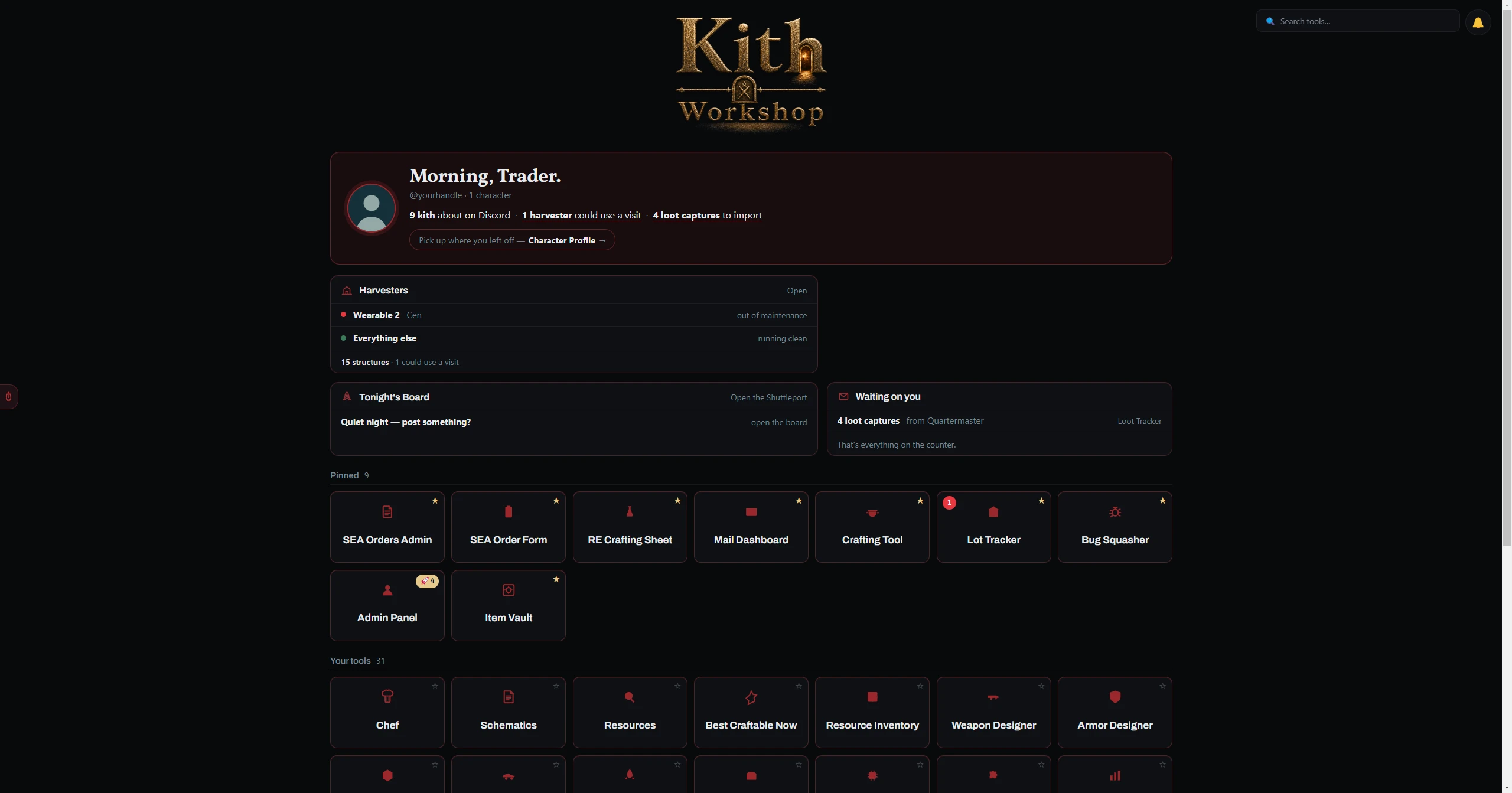
- You land on the Home Screen — every tool you have access to, as cards.
- Type in the search box to filter them. Press Enter to open the first match.
- Click the ★ on a card to pin it to Favourites.
- Open Appearance if you want a different theme.
Not everything is visible to everyone. Tools your account has not been granted simply do not appear — ask an admin if something is missing.
Where to start
| If you want to | Open |
|---|---|
| Work out a build | Skill Calculator then Attribute Planner |
| Craft better food | Chef then Crafting Tool |
| Know what to farm tonight | Best Craftable Now |
| Track your vendor income | Sales Ledger |
| Find a group | LFG Board |
Updates
The Workshop checks for updates itself and tells you when one is ready. You can also check manually from Account. After an update, a What's new note lists what changed.
If something goes wrong
| Problem | What to do |
|---|---|
| Windows blocked the installer | More info → Run anyway, as above. |
| Sign-in is rejected | Check the username and password with whoever set up your account. |
| A tool you expected is missing | It has not been granted to your account. Ask an admin. |
| The app will not start after an update | Restart Windows, then reinstall over the top from the download page. Your settings are kept. |
| A tool reads nothing from the game | It is looking at the wrong folder. Each tool that reads game files lets you set the path — check its guide page. |