The Kith Guide › Character management
◈ Item Vault
Screenshot your inventory, match it to real Restoration items, keep a prized list.
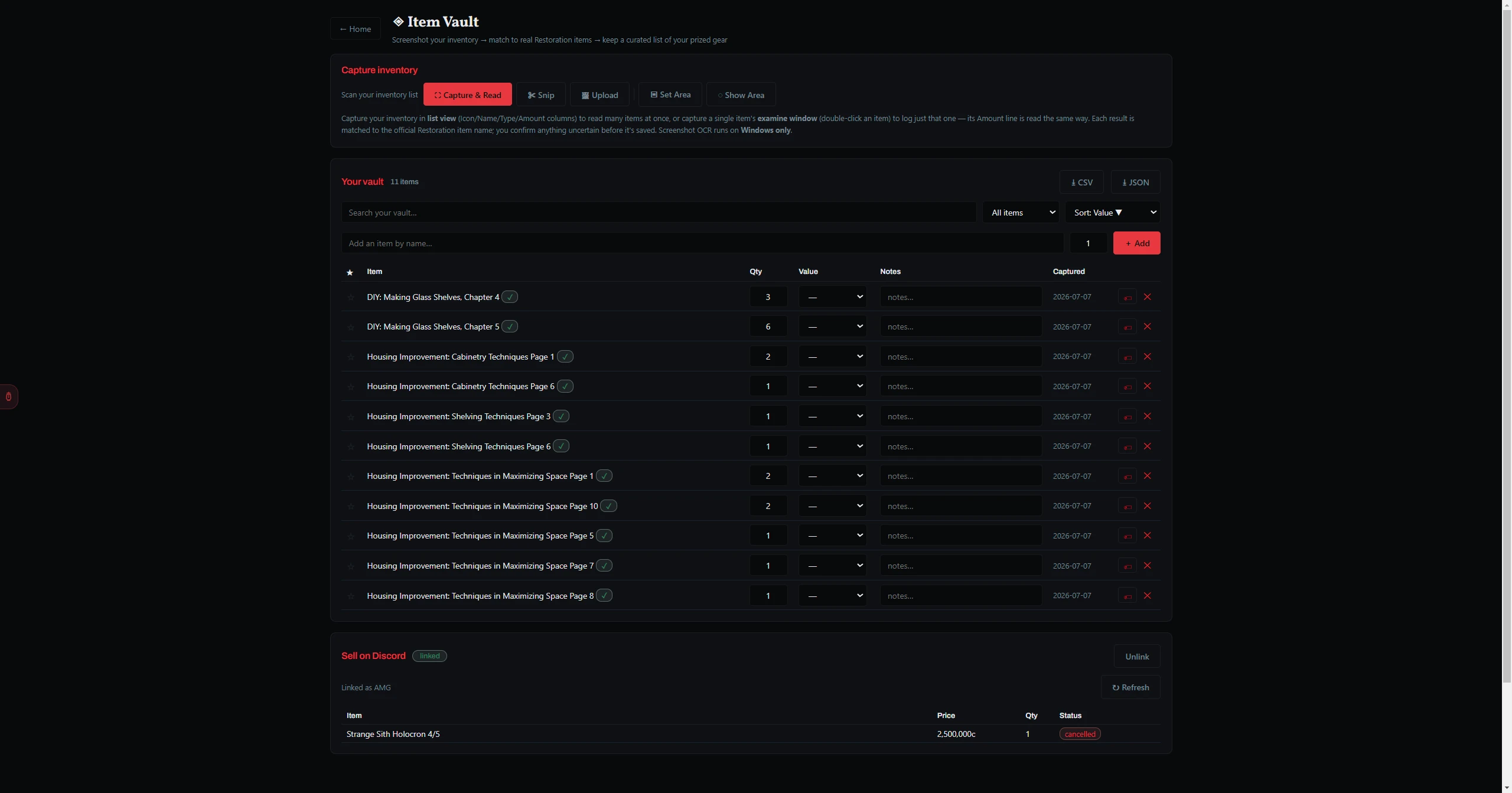
The Item Vault turns a screenshot of your in-game inventory into a curated list of your most valuable items. It reads the item names off your inventory window, matches each one to its official Restoration item name, and saves the ones you confirm — so you always have a running record of your prized gear.
Every scanned line shows a match badge so you know how sure the Workshop is before anything is saved:
| Badge | Meaning |
|---|---|
| ✔ Resto | The text is an exact official item name — no guessing needed. |
| ~85% | A best-guess match with that confidence. Correct it if it's wrong. |
| no match | Nothing close was found. Type the correct name (autocomplete helps) or untick the row. |
- Edit any name field to fix a mismatch — the badge re-checks as you type, and the autocomplete suggests official spellings.
- Set a Quantity and an optional Value tag per row.
- Click ✓ Accept strong matches to add every high-confidence row at once, or Add all to add every ticked row. Dismiss throws the scan away without saving.
Saved items live in the vault table. Everything is stored on your machine.
| Control | What it does |
|---|---|
| ★ Star | Marks an item as a favorite so you can filter to just your standouts. |
| Value | Tags an item's worth — * (1–5M), ** (5–15M), *** (>15M) — for sorting your most valuable to the top. |
| Qty / Notes | Edit inline; changes save automatically. |
| Search / Filter / Sort | Find items by name or notes, filter by favorites or value tier, and sort by value, name, quantity, or newest. |
| ⭳ CSV / JSON | Export the current view for a spreadsheet or backup. |
| + Add | Add an item by name by hand (with autocomplete) when you'd rather not capture. |
| ✕ | Removes an item from your vault. |
The Sell on Discord panel lets you post an item from your vault for sale in the Kith Market channel, where buyers can make offers — all without leaving the game for long.
- Link Discord once: click 🔗 Link Discord, authorize in your browser, then copy the market key it shows you and paste it into the field in the Sell panel. The status pill turns linked.
- List an item: click the 🏷 button on any vault row. Set an asking price (or tick Accept best offers), a quantity, and an optional note, then Post listing. A card appears in the market channel.
- Offers come to you: when a buyer clicks Make offer on your card, the bot DMs you their offer with Accept / Decline buttons and opens a thread to coordinate the meet.
- Close it out: in My Listings (or from the card in Discord) mark an item Sold or Delist it — the card updates to match.