The Kith Guide › Character management
🎁 SWG Loot Tracker
Every drop from your loot channels — what dropped, where, and which rotations are dry.
The SWG Loot Tracker logs every item dropped in your runs and tells you which instance each came from, how often it drops, and how long it's been "dark." You feed it loot either by scraping a Discord loot channel automatically or by pasting a bot distribution message. A matching engine links items to their instance — and you can tag an item with several instances when it drops in more than one; anything it can't match goes to a Review Queue you correct once, and your corrections are remembered forever. All data stays on your machine.
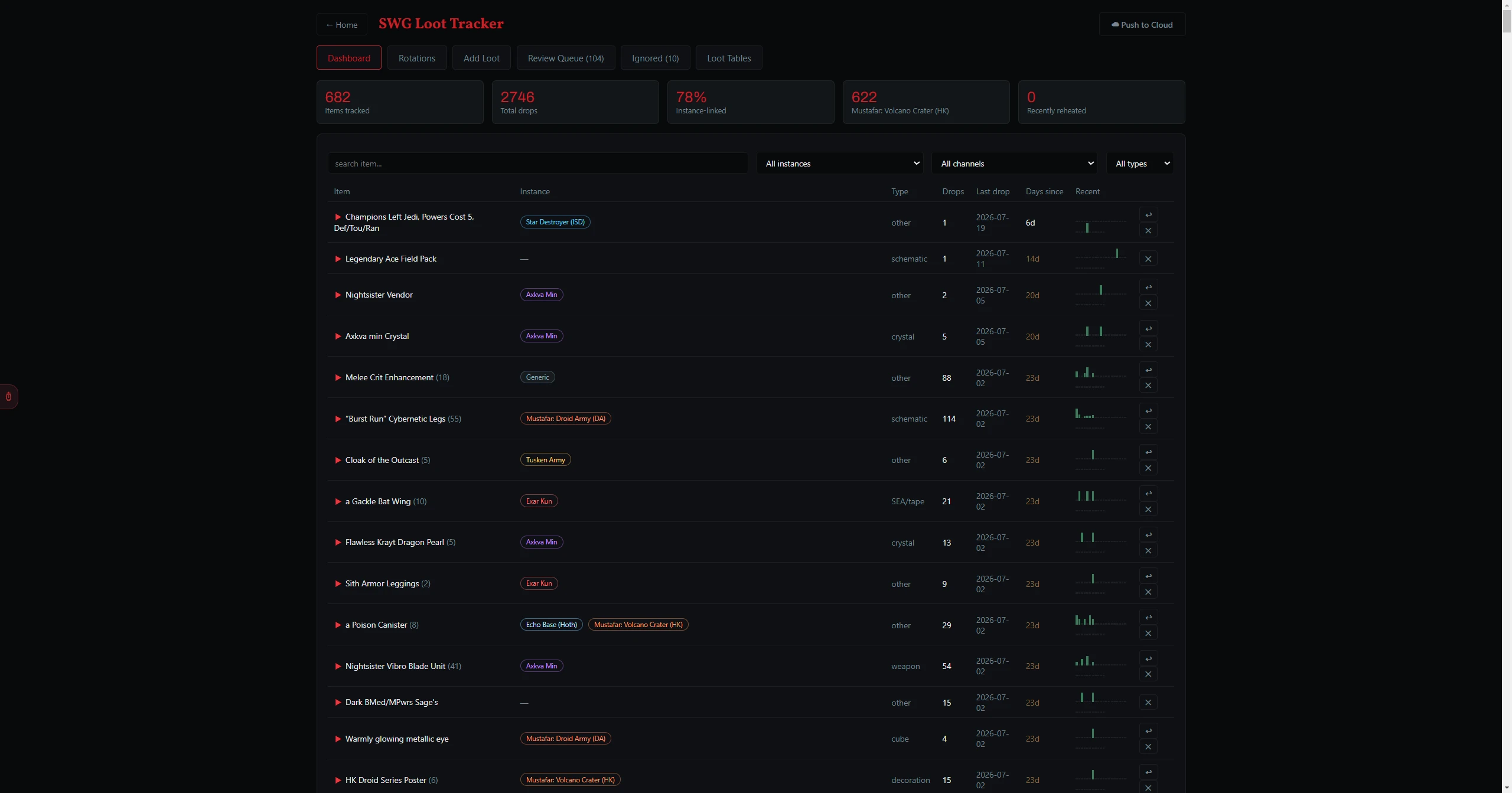
The Tabs
| Tab | What it shows |
|---|---|
| Dashboard | Stat cards (items tracked, total drops, instance-linked %, top instance, recently reheated) plus a searchable, sortable item table — columns Item, Instance, Type, Drops, Last drop, Days since, and a 30-day Recent sparkline. Filter by instance, channel, or type. |
| Rotations | Drops over time — a per-item timeline where each block is a day an item dropped; long gaps mean the item went "dark." Filter by instance and time window. |
| Add Loot | Where you bring loot in (scrape or paste — see below). |
| Review Queue | Items with no heroic yet — correct them once and the fix is learned forever. |
| Ignored | Hidden/junk items, restorable at any time. |
Adding Loot — Three Sources
Screen capture: Scrape from Discord — automatic · Click ① Open Discord, log in, pick the Server, and open the loot channel. · Set Days back (default 21), then click ② Scrape current channel. The app scrolls the history and reads every bot roll. · It's read-only — it never sends messages or uses Discord's API — and re-scraping only adds new rolls.
Screen capture: Loot Bot Inbox — always-on capture · The standalone loot-bot watches the loot channels you configured and forwards rolls to an inbox automatically. · Click ⟳ Pull bot inbox to bring in anything it captured — deduped against everything already tracked — for review, exactly like a scrape.
Screen capture: Paste a bot roll session — manual · Pick the Server, Channel, and Date, then paste a bot distribution message — Nae's Loot Picker (Meatbag Distribution Results), RNGenie (Assigned Items), or a raw
!loot list. · Click Parse & Preview to see the parsed items, then ✓ Add these to tracker to commit them.Review Queue
- Type an item's correct name and click Save — it's re-checked against the database and the matching instance is assigned automatically, or pick one or more instances manually to override. The name is remembered, so future copies match automatically.
- Click Ignore to hide junk everywhere (and auto-hide future copies).
- Click ↻ Recheck against database to re-match the whole queue after a data update.
- Click ⤓ Export CSV to download the current (filtered) queue as a CSV — handy for sharing items you need help matching.
Note: Scraping is desktop-only and only reads channels you can already see. If you ever see "Scraper bridge missing," fully Quit and reopen the app (a page reload isn't enough after an update). Gap coloring: ≥14 days = cold, ≤3 days = hot.