The Kith Guide › On the web
🏷 The Market & Price Guide
Buy, sell, price-check, post a WTB, and run harvest contracts.
The Market is where Kith trades. It is a shopfront, a price guide and a want-to-buy board in one, and every listing also appears as a card in Discord so you do not have to keep the page open to sell something.
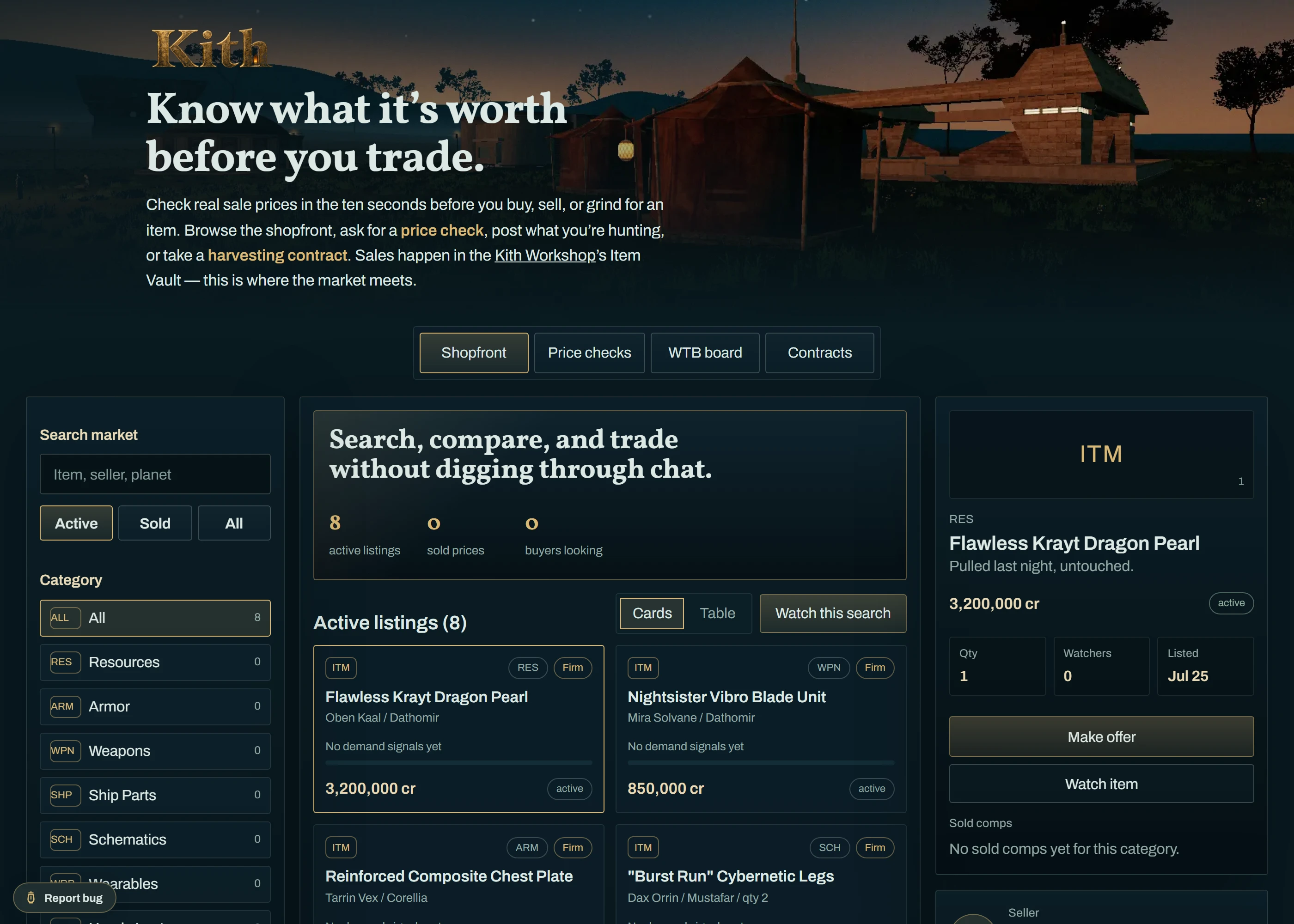
| Section | What it is for |
|---|---|
| Shopfront | What is for sale right now, plus the most recent sales so you can see what things actually went for. |
| Price checks | Ask the community what something is worth, or help appraise someone else's item. |
| WTB | Want-to-buy board — post what you are hunting and let sellers come to you. |
| Contracts | Harvest contracts — pick up a resource-gathering job, deliver, get paid. |
Within the Shopfront, the Active / Sold / All filters and the Cards / Table toggle change how much you see at once. Table view is the faster way to scan prices.
One Discord sign-in covers the Market and everything else in Kith — it is the same identity the Shuttleport uses.
- Click Sign in.
- Approve the Discord prompt.
- You come back signed in, with your seller desk available.
- Click Post a listing.
- Name the item. A typeahead matches it against real Restoration item names — pick the match rather than free-typing, so buyers searching for it find you.
- Set your price, quantity and any notes.
- Post it.
What happens next:
- The listing shows on the shopfront and posts as a card in the market channel.
- A buyer clicking Make offer sends you a DM with Accept and Decline buttons.
- When it sells, click Mark sold. The card is struck through and the sale joins the price history.
- Cancel pulls a listing without recording a sale.
If you use the desktop Item Vault, you can push your inventory to the cloud and list from it directly instead of retyping item names.
- In the Workshop, open Item Vault and push your vault.
- On the Market, your vault items are available to list in one click.
- The WTB matches view then scores your vault against every open want-to-buy — it tells you what you are already holding that somebody is actively looking for.
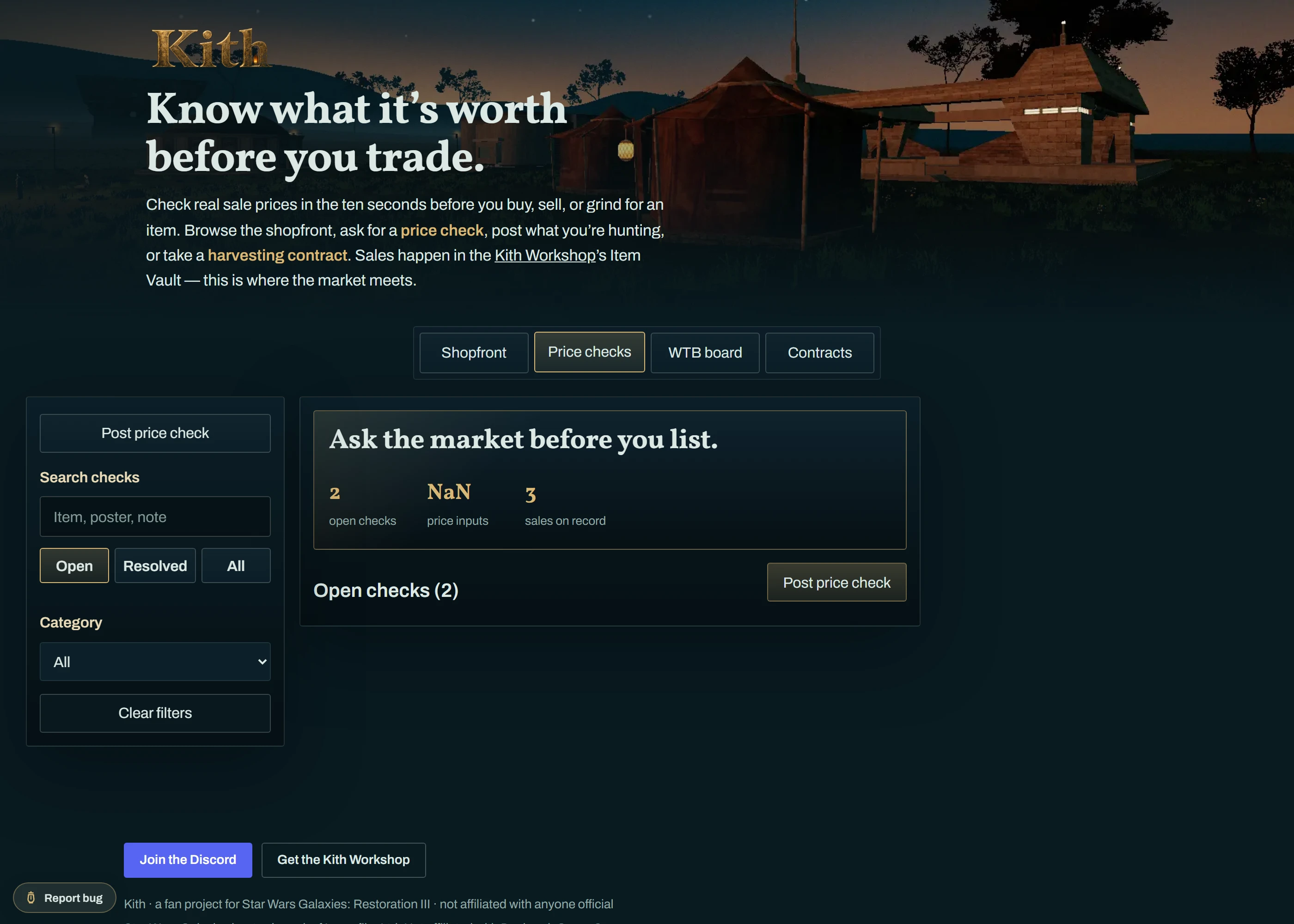
For when you have no idea what something is worth.
- Go to Price checks and click Ask for a price check.
- Name the item and add anything relevant — stats, condition, what you paid.
- Other players submit an appraisal: a low, a high, and how confident they are.
- When you have enough answers, resolve it with what you think it is worth.
Resolved price checks stay visible, so the board doubles as a slowly accumulating price history for unusual items.
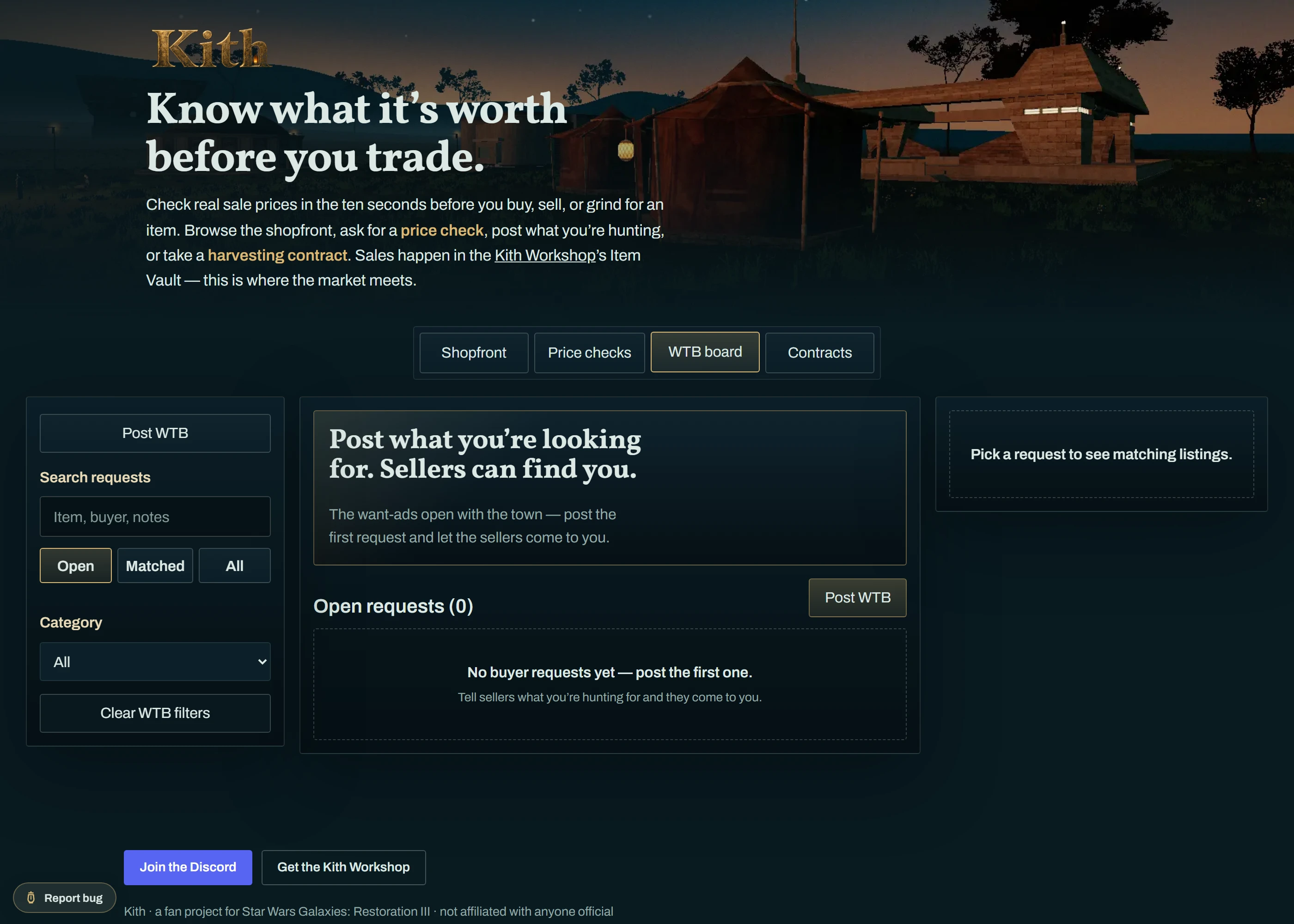
- Go to WTB and post what you are looking for, with the price you would pay.
- Sellers see it on the board, and anyone whose cloud vault contains a match gets it surfaced.
- Filter by Open / Matched / All to see what is still live.
Contracts are gathering jobs. Somebody needs a quantity of a resource and will pay for it delivered.
- Open Contracts and read the open jobs — resource, quantity, and payment.
- Pick a contract to claim it.
- Go and harvest.
- Log the delivery when you hand it over.
- Get paid.
The Market's Discord side is entirely buttons and modals — there are no slash commands to learn. See the Broker guide for what each card and button does.
| Where | What you can do |
|---|---|
| Market channel | One card per listing. Make offer to start a purchase. |
| Your DMs | Offers arrive here with Accept / Decline. |
| Price check channel | Submit an appraisal without opening the website. |
| Problem | What to do |
|---|---|
| Your listing has no Discord card | It posted before you linked Discord. Cancel and repost. |
| An offer DM never arrived | The bot cannot DM you — enable direct messages from server members in your Discord privacy settings. |
| Item name will not match | The typeahead only knows real Restoration items. If it genuinely does not exist in the list, report it. |
| Vault push says 409 | Your vault changed somewhere else since you loaded the page. Reload and push again. |
Use the Report bug button on the page for anything else — see Reporting a Bug.