The Kith Guide › Space & ships
🛰 Ship Loadout
Outfit a chassis slot by slot and watch mass, energy, damage and speed move live.
The Ship Loadout builder outfits a complete ship — chassis plus every component slot — and shows live mass/energy budgets, weapon damage, shield strength, and speed as you add parts. Use it to plan a loadout before buying expensive components or to compare different part combinations.
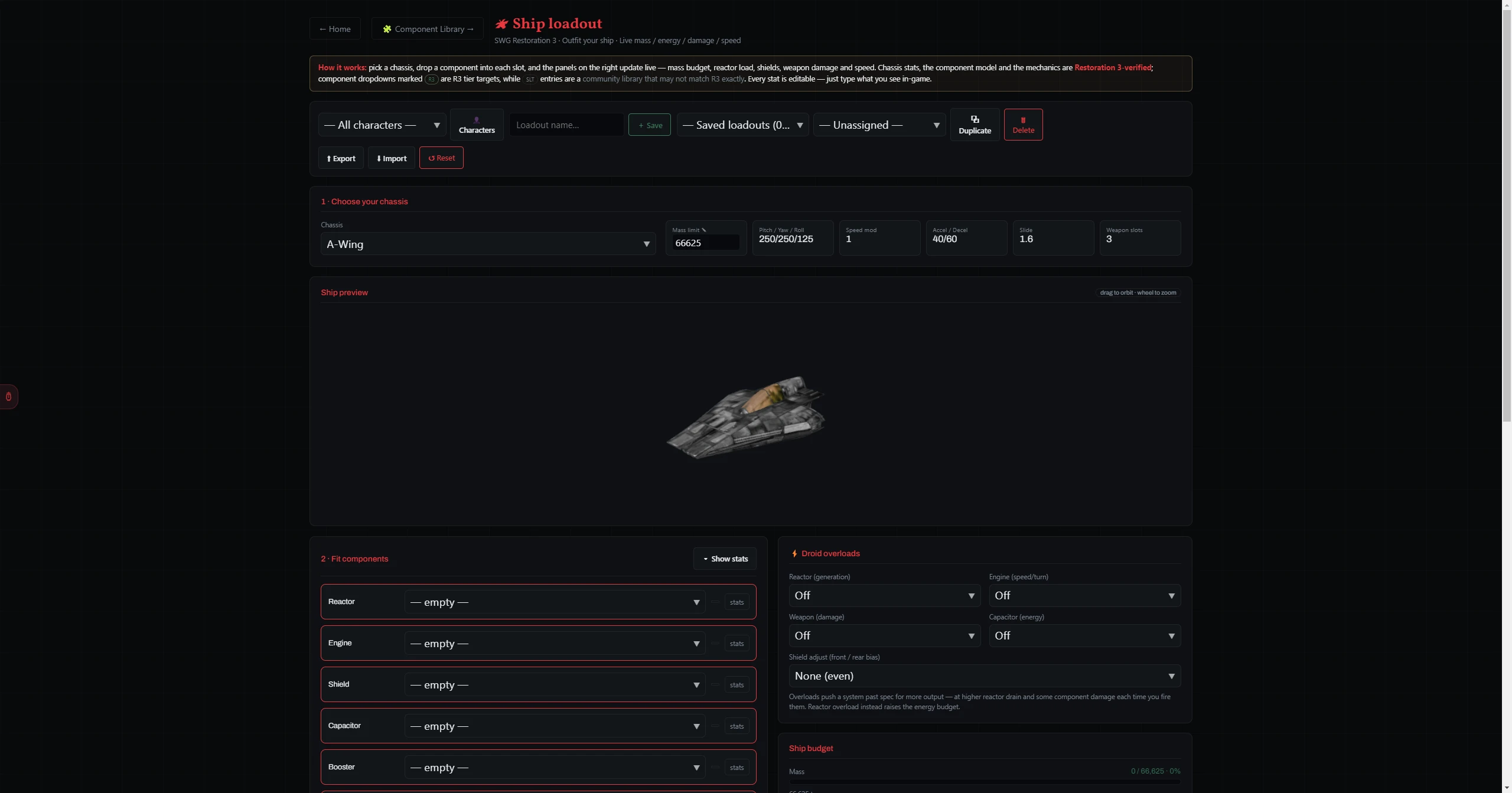
- Select a Chassis from the dropdown. The chassis summary shows its mass budget, weapon slots, and base stats.
- Component slots below update to match the chassis — different ships have different slot counts.
- For each slot (Reactor, Engine, Shield, Capacitor, Booster, Front Armor, Back Armor, Droid Interface, Cargo Hold, weapon slots, and any Ordnance / Countermeasure pack slots), open the dropdown to pick a component.
- The dropdown groups parts as My Library (your saved components from the Component Library — your actual stats load automatically), R3 targets, and Community library (SLT). A ✎ Custom (enter stats) option lets you hand-enter a part that isn't in any library.
- After selecting, stats appear in editable fields below the dropdown. Type over any value to match your in-game part exactly.
- Click ▾ Show stats in the Step 2 header to expand all stat fields at once (or ▴ Hide stats to collapse).
| Overload | Effect |
|---|---|
| Reactor (generation) | Off or Level 1–4 — increases energy generation, expanding the energy budget for other components. |
| Engine (speed/turn) | Off or Level 1–4 — increases top speed and turn rate. |
| Weapon (damage) | Off or Level 1–4 — increases weapon damage output. |
| Capacitor (energy) | Off or Level 1–4 — increases capacitor energy available for weapons. |
| Shield Adjust | Redistributes shield strength between front and rear. Options range from None (even) to Front · Extreme (190/10) or Rear · Extreme (10/190). |
| Panel | What it shows |
|---|---|
| Ship budget | Mass gauge and Energy gauge — red when over budget. Expand "reactor power draw by component" to see which slot uses the most energy. |
| ⚔ Offense | Per-weapon table — Avg/shot, DPS, and energy per second (E/s) — with a Pilot Gun Total row, plus a Damage total (PvE / PvP alpha) summary and an Ordnance table (PvE / PvP damage and ammo) when ordnance packs are fitted. |
| 🔋 Capacitor summary | Cap energy, cap recharge rate, recharge time (0→full), and — with weapons fitted — fire time (how long you can hold the trigger before a shot fails), firing ratio, and full-cap damage. |
| 🛡 Defense | Front and rear shield HP and recharge, front and back armor HP. |
| 🚀 Speed & booster | Top speed, booster speed, booster energy consumption and recharge. |
| 🎯 Maneuver & throttle | Pitch, yaw, roll rates and command speed. |
Save, Duplicate, Delete, Export (.bship), Import, and Reset work the same as in the Weapon Designer. Saved loadouts remember all slots, all manually entered stat values, the chassis, and the droid overload settings. The builder also auto-saves your in-progress loadout and restores it the next time you open the page, and 👤 Characters lets you filter saved loadouts by pilot and assign an owner to each.