The Kith Guide › Resources
⛏ Holdings
Track harvesters, housing and vendors — power, maintenance, lots used, and vendor stock read straight off the screen.
Holdings keeps tabs on everything that uses your lots — harvesters, factories, and player housing. Countdown timers show when hoppers will fill or maintenance is due so you never miss a collection or let a structure decay. The Home Screen card flags a colored badge when something needs attention.
- Click the + ADD STRUCTURE button.
- Select the Mode: ⛏ HARVESTER, ⚙ FACTORY, or 🏠 HOUSING.
- Fill in the Label, Type, Planet, and (for harvesters) the resource it is mining plus its BER (units/min), HOPPER CAPACITY, CONCENTRATION (%), and an optional INSPIRATION BUFF (the entertainer extraction buff held when you drop the harvester — +1% to +5%, locked in until pickup) — the tool calculates when the hopper will be full.
- Enter POWER LOADED (eu) and MAINTENANCE (cr) — the amounts currently loaded in-game. The tool burns these down at the structure's rates and the countdown starts immediately.
- Mark whether it is inside a player city.
- Click PLACE STRUCTURE.
| Element | What it means |
|---|---|
| Countdown timer | Time remaining until the hopper is full or maintenance is due. Green = plenty of time, gold = check soon, red = almost full or overdue. |
| Hopper % | Estimated fill percentage based on extraction rate and time elapsed (harvesters). Red when high. |
| Resource chip | Shows what resource the harvester is set to. |
| CITY / WILDERNESS badge | Whether the structure is inside a player city or out in the wilderness. |
| Button | What it does |
|---|---|
| UPDATE | Re-enters the POWER or MAINTENANCE amount currently loaded in-game and restarts that countdown. Appears on both the power and maintenance rows. |
| COLLECT | Opens a COLLECT HOPPER prompt to log how many UNITS COLLECTED, then marks the hopper as emptied and resets the fill countdown to zero. |
| ⇄ SWAP | Quickly switch the resource this harvester is mining. |
| 📍 | Copies the structure's in-game waypoint to your clipboard. |
| ⧉ | Duplicates the structure (e.g. to another character) so you don't re-enter shared details. |
| 📦 | Picks the structure up / re-deeds it, moving it back to your Deed Inventory. |
| ✎ | Re-opens the full form to change any setting. |
| ✕ | Permanently removes this structure from tracking. |
⚙ FACTORY mode tracks factories and their maintenance the same way harvesters are tracked. 🏠 HOUSING mode tracks maintenance timers only (no hopper) — the card shows the structure name, location, and a countdown to maintenance expiry with the same color coding. Factory and housing cards also have an inline EDIT button on their NOTES row for jotting a quick note — separate from ✎, which re-opens the full form.
Vendors sit in their own section below the lot cards, because a vendor costs no lots and draws no power — it lives inside a structure that already paid for both. What the tracker keeps for a vendor is its maintenance and, if you want it, what is on the vendor right now.
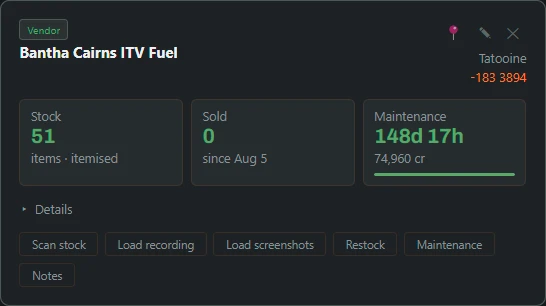
- Click + Add vendor.
- Enter the vendor name exactly as it reads in-game. This is not cosmetic — sale mail is matched on character plus vendor name, so a vendor named differently here never gets its sales counted.
- Set the Planet and, optionally, a Waypoint.
- Optionally enter the maintenance rate (cr/h) and maintenance loaded (cr). Read the rate off your own vendor — it varies by vendor type and server, so the tracker never guesses it.
- Choose Just a count or Itemised list for stock tracking, and click Save vendor.
Check sales reads your character mail and subtracts sold items. If it finds sales for a vendor you aren't tracking yet, it lists that vendor with an Add button. Check listings reads your chat scrollback for items you put up for sale — chat never names the vendor, so this one always asks rather than writing a number itself.
Rather than retyping a vendor list, the Workshop can read the in-game vendor window. This is the same screen reading described in Screen Capture & OCR — it reads pixels on your screen, nothing is injected into SWG.
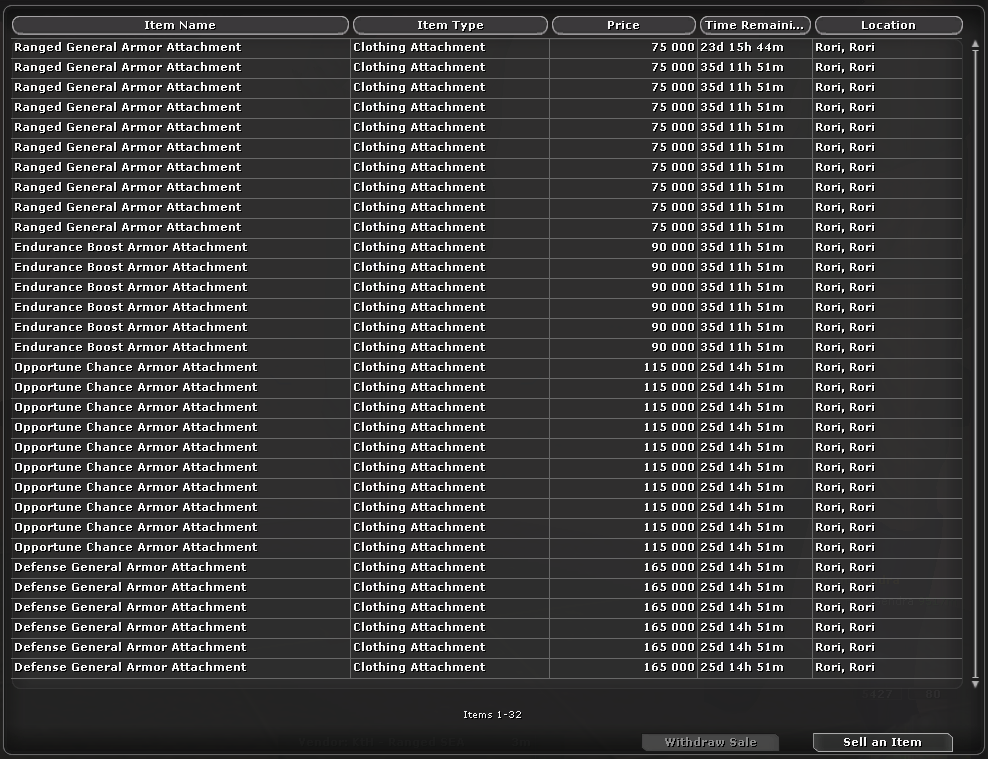
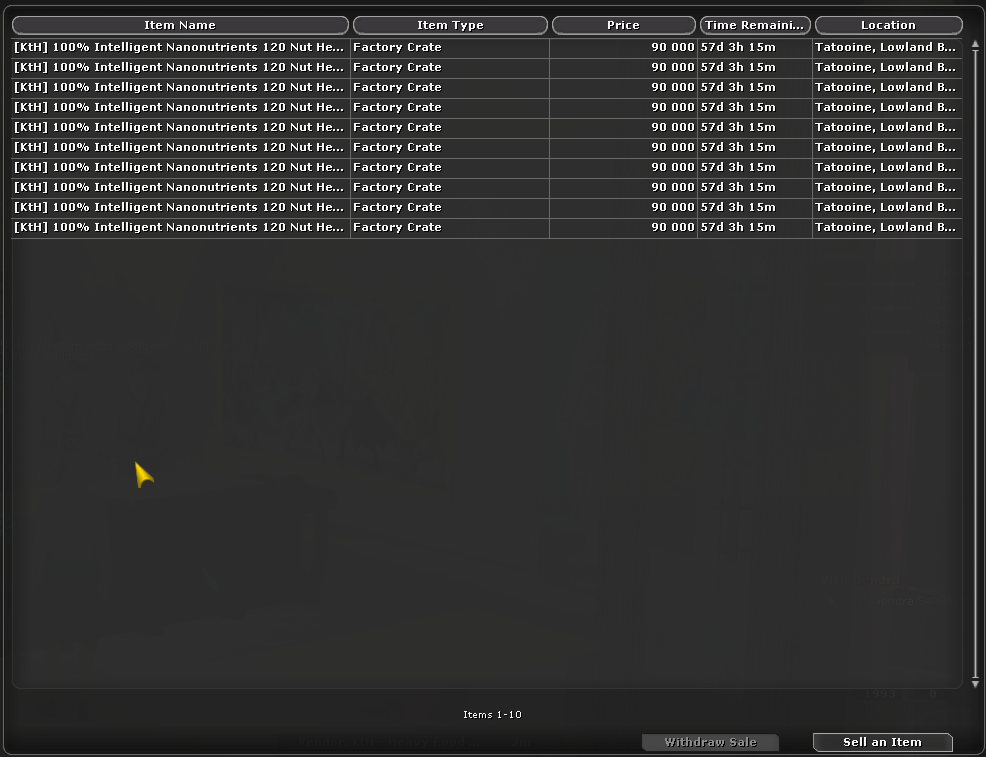
Whatever route you use, capture the vendor window itself — the Item Name, Price and Time Remaining columns — and include the footer line that reads Items 1-32 (or whatever your total is). That footer is the only thing in the picture that says how many items the vendor actually holds, and everything the review panel can tell you afterwards depends on it.
Rows are grouped into batches: same item name, same price, same time remaining becomes one line like 9 × 75 000. That is why identical-looking rows collapse in the review.
| Route | Use it when | What it costs you |
|---|---|---|
| Load recording | Almost always — especially a vendor with more items than fit on screen. | Recording a short scroll first. |
| Scan stock | The vendor is on this PC and its whole list fits on one screen. | Marking two regions, once. |
| Load screenshots | The vendor is on another PC and all you can get is stills. | Naming the files in page order. |
| Restock | Nothing to capture — you just want to type the list or adjust a count. | Typing. |
- In SWG, open the vendor's stock window at its normal size — not the whole screen scaled down.
- Start a screen recording (Windows Game Bar,
Win+Alt+R, works; so does any MP4 or WebM). - Scroll the list slowly from top to bottom. Let the footer stay in frame.
- Stop the recording, then click Load recording on the vendor's card and pick the file.
- Wait for the read, then review and apply.
A recording beats stills on both counts that matter: consecutive frames are guaranteed to overlap, so the list can be joined end to end with nothing lost between pages, and the footer rides along in every frame, so the total can be checked instead of assumed.
Only the frames needed to join the list are read, so a twelve-second clip does not mean 375 reads. It still takes a moment — click Carry on in the background and the job moves to the sidebar, where it keeps going while you do something else, with a Stop button if you change your mind.
If the columns move — a different UI scale, a resized window — the scan will come back with nothing readable and offer the two Mark… buttons again right there.
No regions can be marked for someone else's screen, so each image is read whole and the columns are found from the content.
- On the other PC, photograph the vendor window one screen at a time, scrolling between shots so consecutive shots share a few rows — that overlap is what the pages are joined on.
- Keep the footer in frame on at least one shot.
- Name the files in page order —
vendor 1,vendor 2,vendor 3. The picker returns whatever order you clicked, so the Workshop sorts by filename instead. - Click Load screenshots on the vendor's card and select them all.
Nothing is written until you approve it. The review groups what it found:
| Group | What it means |
|---|---|
| Sold since the last scan | Matched to stock you already held, and fewer of them now. |
| Unchanged | Same batch, same count. |
| Tracked but not in this capture | You hold it, the capture didn't show it. Usually "wasn't on screen", not "sold out". |
| Cut off by the edge of the capture | A batch runs past the edge of what was captured. The tracked count is kept — a shortfall here is not a sale. |
Then two buttons, and the difference matters:
- Merge updates what the capture showed and keeps everything it didn't. This is the safe default.
- Replace all treats the capture as the entire vendor and deletes anything absent from it.
The Workshop chooses which one leads for you. When the footer proves the capture covered the whole vendor, Replace all becomes the primary button — that is the only case where a missing listing really does mean sold out. Otherwise Merge leads, and if the count proves the capture was partial, Replace is hidden entirely rather than left as a trap.
| Problem | What to do |
|---|---|
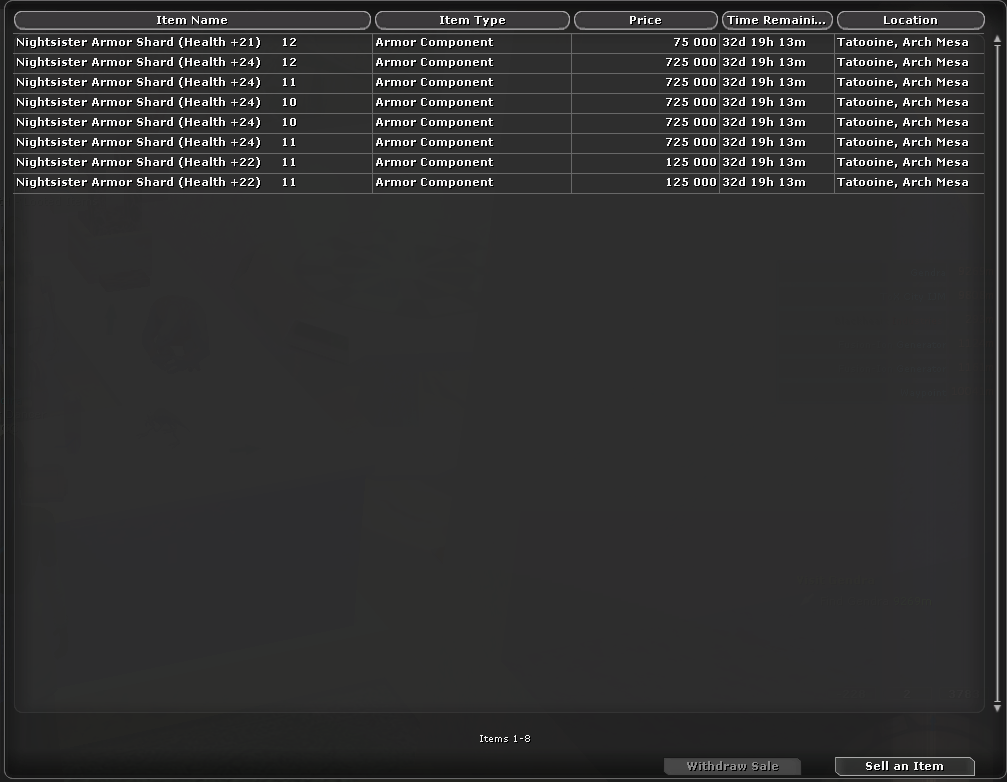
| "Nothing readable in those images" | The shot needs the vendor list itself — Item Name, Price, Time Remaining — not the whole screen. |
| "Nothing readable in that recording" | Recorded at a scaled-down desktop resolution. Record the window at its normal size. |
| The video won't open | Some phone and screen-capture formats use codecs the app can't read. A Game Bar recording or any ordinary MP4/WebM works. |
| A price reads far too large | A digit from the next column was swallowed. Recapture with the window a little wider. |
| The stitch came up short | The pages didn't overlap. Scroll less between shots, or use a recording. |
| Stock is right but sales never subtract | The tracked vendor name doesn't match the in-game name exactly. Fix it with ✎ on the card. |
The 📦 Deed Inventory panel tracks deeds you hold but haven't deployed. Click ▶ PLACE on a deed to convert it into a tracked structure.